


How to Setup a Google Business Profile
by Cedar Studios • 9/11/2023
SEO
If you want your business’s website to show up on Google’s first page (you do), there is no better way to get started than by creating a Google Business Profile page.
Google Business Profiles are the boxes that pop up when you search for local businesses. They include important information about your business, such as your phone number, website, hours, and more.
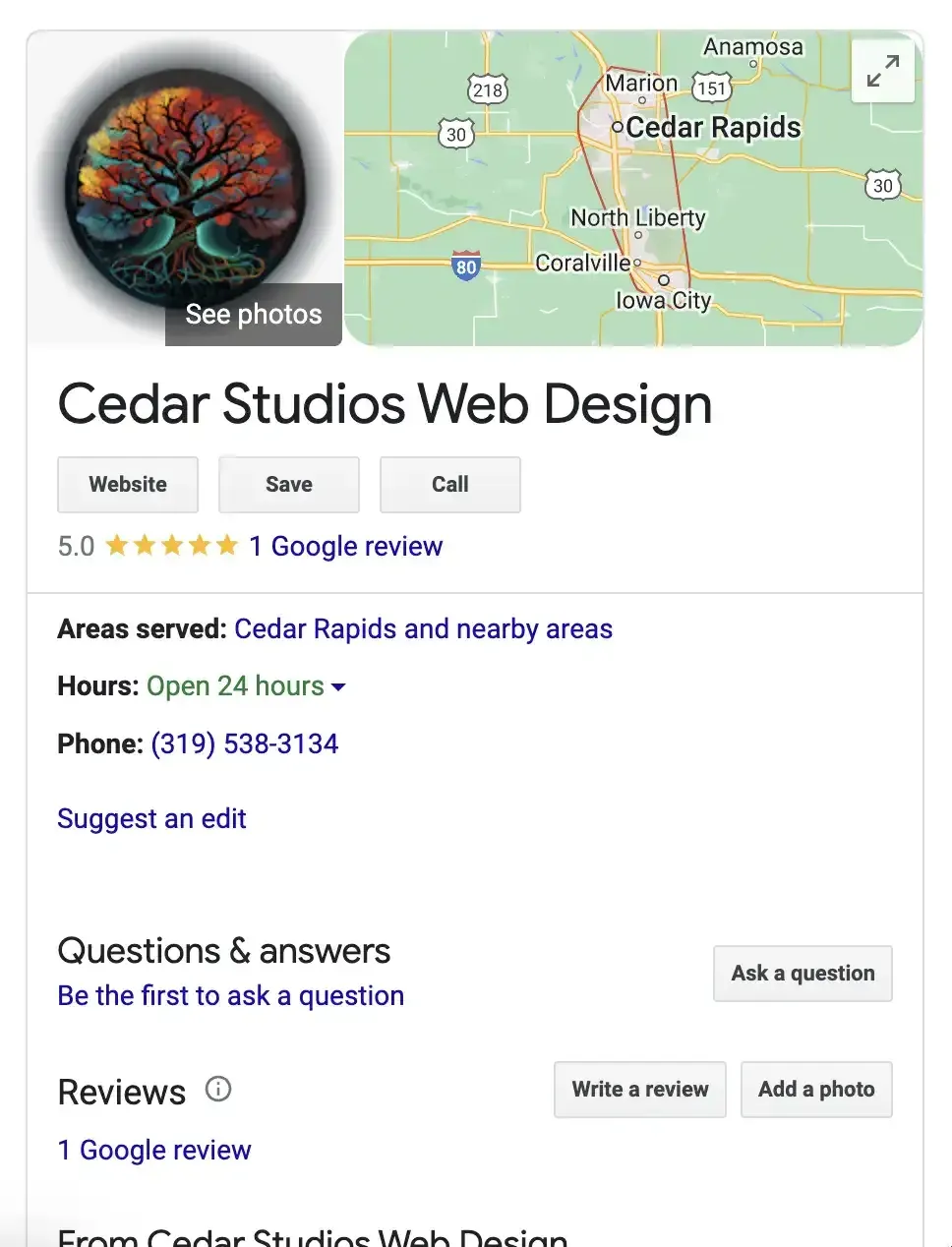
Having this profile also influences Google to place your website higher in the search rankings. Simply put, if you have a strong Google Business Profile, chances are high that more customers find your website and click through it.
Let’s dive into how to set it up.
Create an account
First, go here: https://www.google.com/business/
Sign in with your Google account.
- Enter your business’s name.
- Select the type of business (online, local, or service)
- Select the category of business. Google will make you choose from their suggestions, so find one that fits best. You will want to add more later.
- Add locations that your business serves. Add however many locations make sense for you. If you are an online-only business, select your town and all the surrounding towns—it’s easier to start finding customers locally through Google as the competition isn’t as intense.
- Add your business’ phone number and website. If you need to register a website, we can help.
That’s how easy it is to set up! Now, you need to add in your businesses information.
Adding information
Now, when you search for your business’s name in Google, your Google Business Profile should show up at the top.
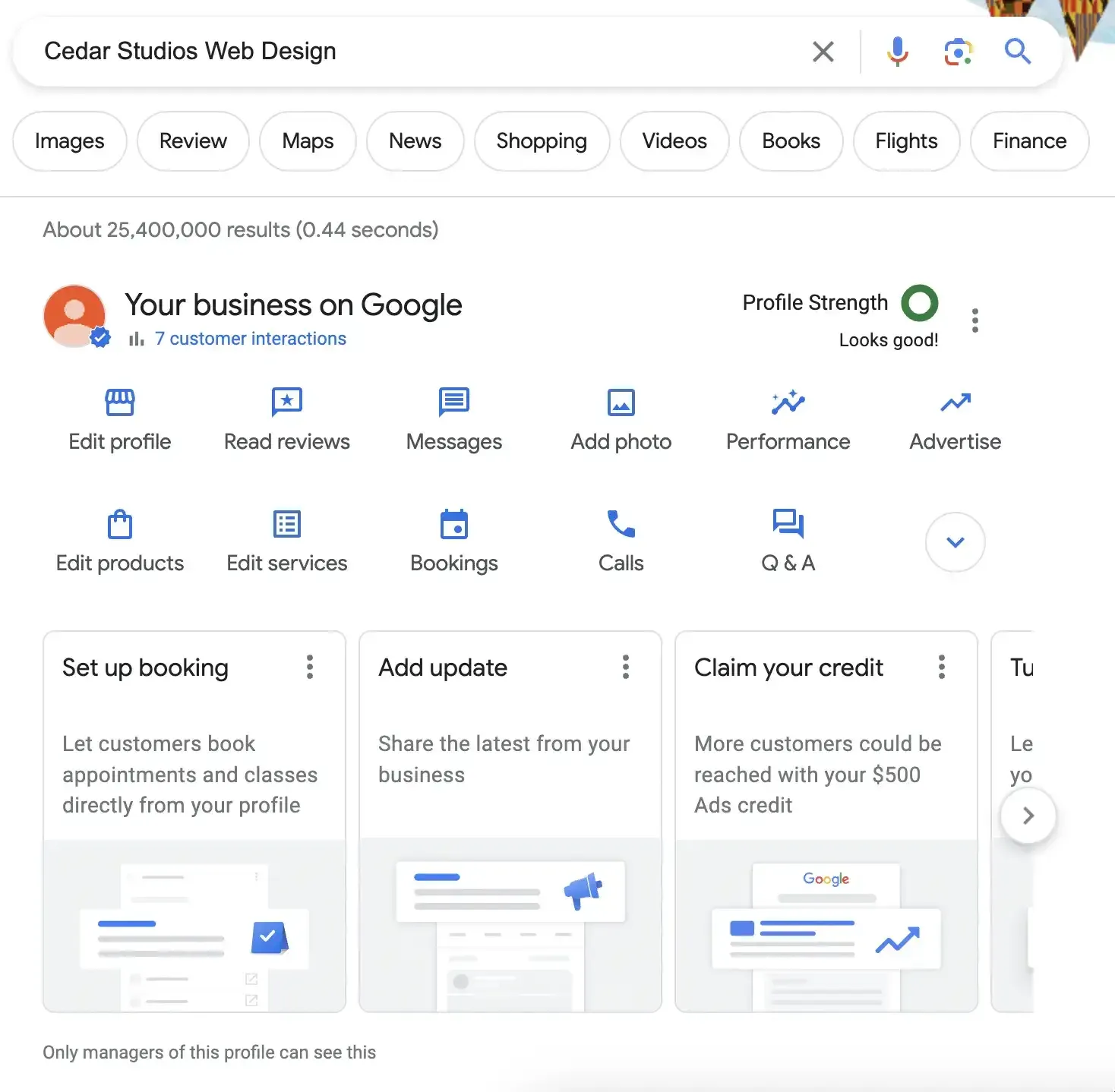
This is where you will manage your profile. Click the “Edit profile” button to get started.
A new window will pop up with the following sections: About, Contact, Location, Hours, and More.
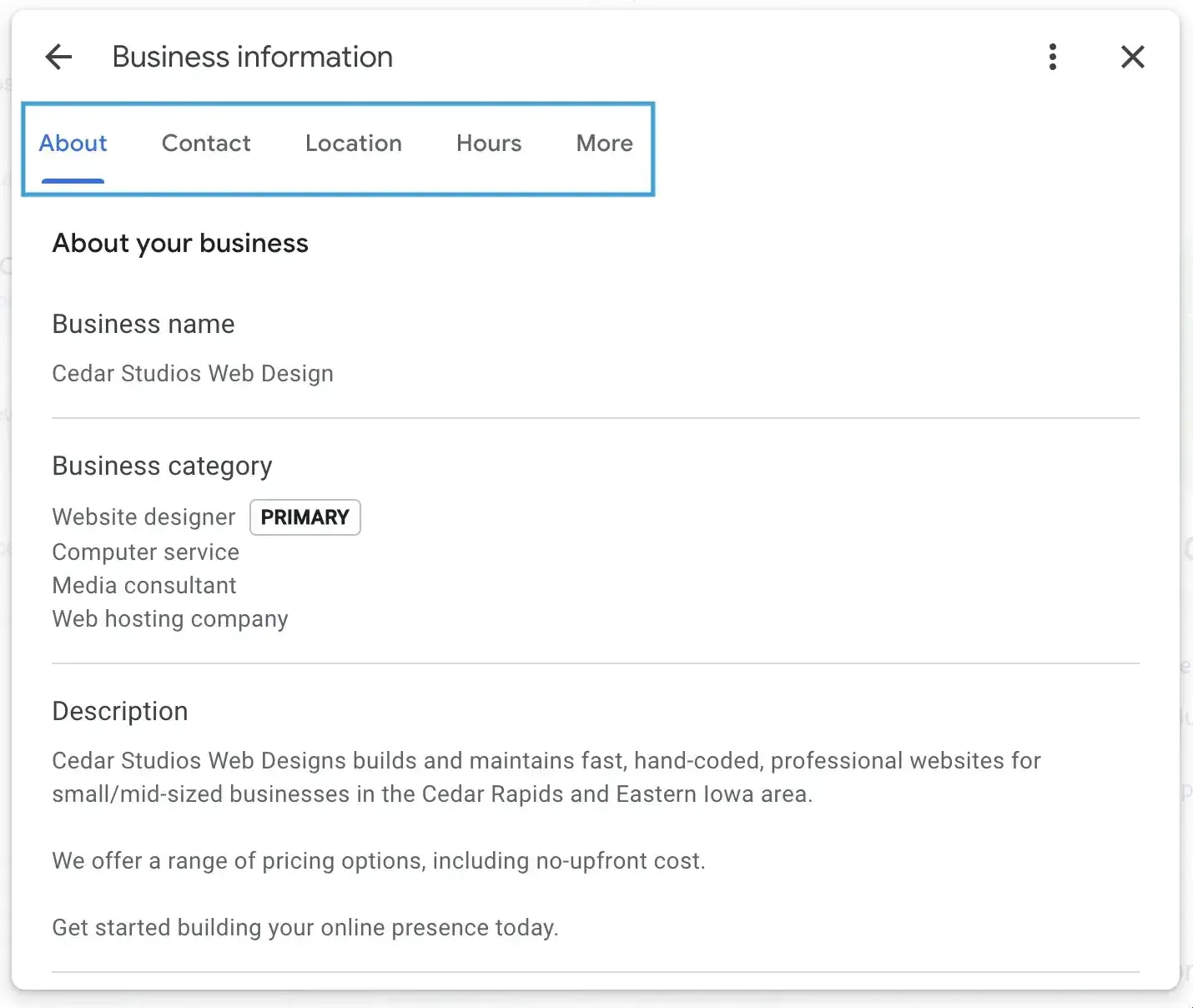
Go through each one of these and fill them out completely. Don’t leave any field unfilled if you can help it. The more your include, the more Google trusts your profile and will show it off.
Here is where you can add more Business Categories. Add as many sub-categories as you can that can sense. Add a compelling and informative Description. Add your hours, including holiday hours.
When you’re done, save your changes and go back to the main screen. Feel free to add products, services, and FAQs by clicking those buttons. Everything helps.
Make sure to add any images of your business, logo, or past work that you have. These will help make your business look more legitimate and active. Google also likes to see these.
Reviews
Speaking of your website’s legitimacy, your Google reviews are one of your most important pieces of online real estate.
Google will rank your business profile higher in their search results if you have more reviews. Customers also like to see these, and will place more trust in your business. Just ask Google:
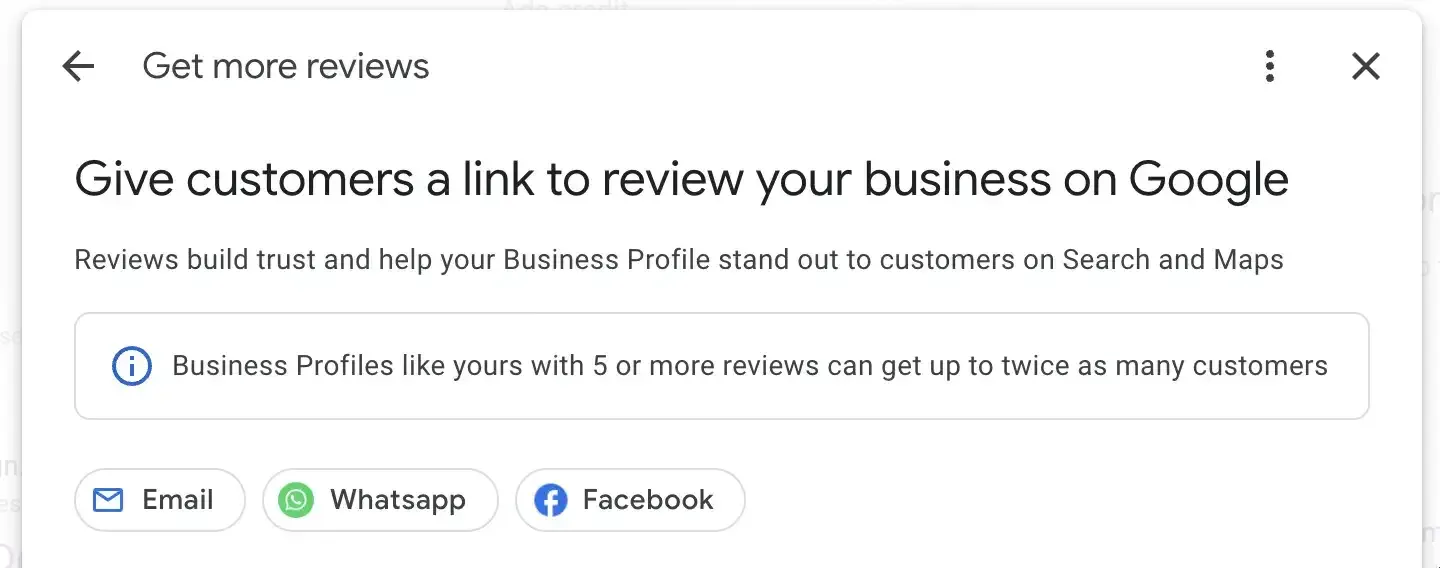
“Business Profiles like yours with 5 or more reviews can get up to twice as many customers.”
Get as many reviews as you can. If you have 30-40+ high-quality reviews in Google, chances are that your business will dominate the local online market.
How do you get so many reviews? Just ask for them!
Follow-up email
Asking your customer’s directly to review your business is a good start, but most won’t. Why? Because after they leave your store, or after you leave their home if you are a service business, they will likely be busy and forget about the review.
Consider one of our clients, CR Facepainting. If you hired their services for your child’s 5th birthday party and the facepainter asked you for a review, would you sit down immediately after the party and do it?
Of course not. You’d be too busy getting the kids washed and put to bed and cleaning up the backyard. By the time you finish, you will either forget or be too exhausted to care.
So send your customers a follow-up email a couple days after you provide your services.
Explain why reviews matter
If your business provides excellent products or services, your customers will be happy to help you out. In the email, explain that you are focusing on increasing your web presence, and that Google reviews help you out significantly.
Make it easy
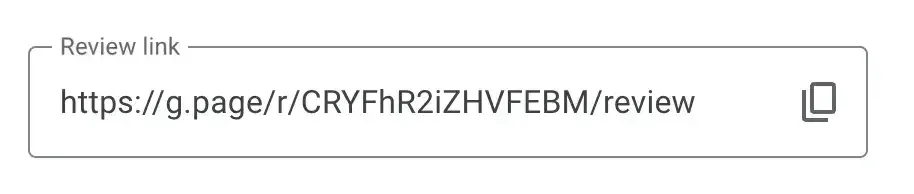
In your Google Business Profile settings, there is a button titled “Ask for reviews.” When you click this, a link will be generated that will take your customer’s directly to an empty review prompt.
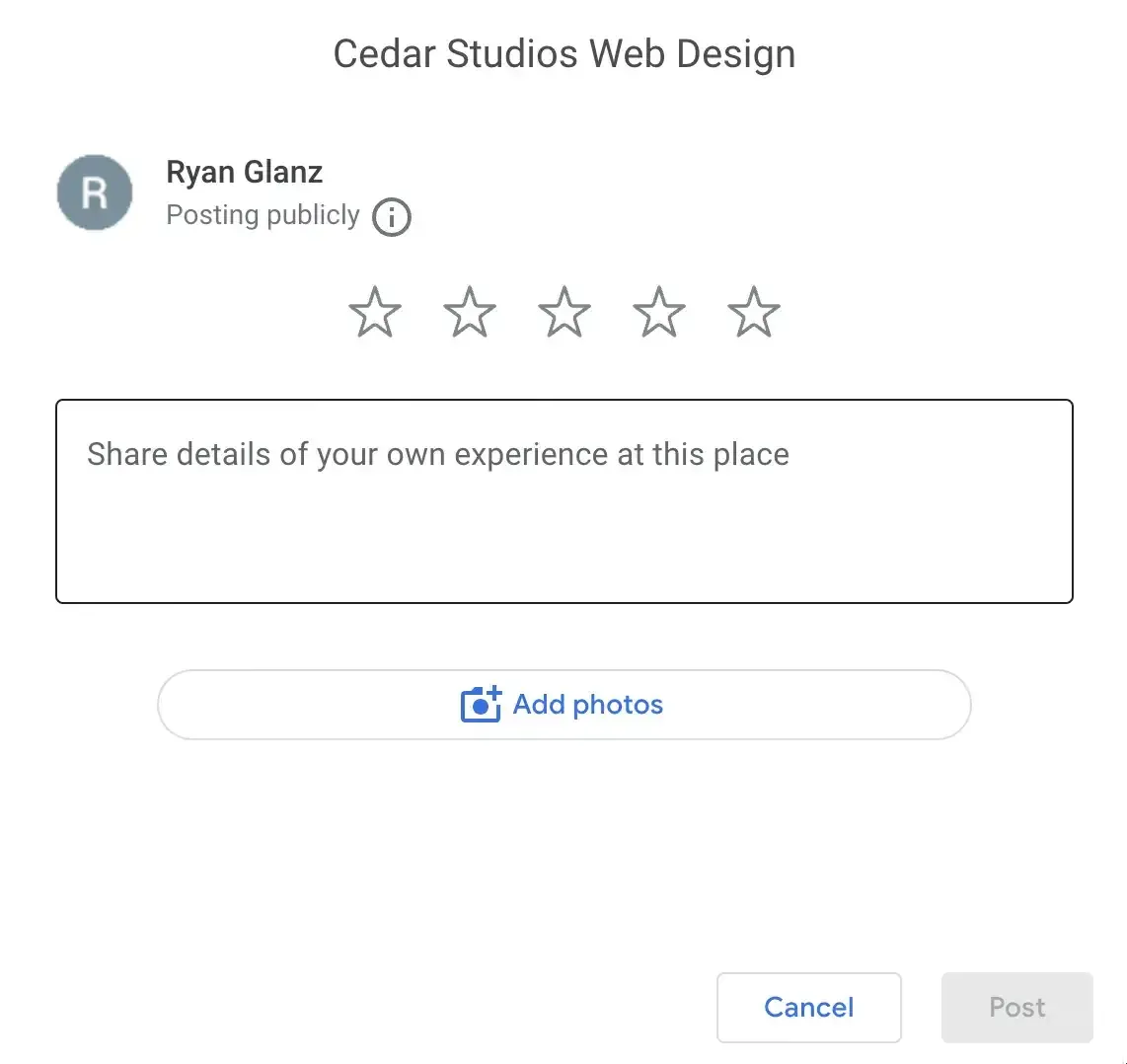
Include this link in your email so that your customer doesn’t get lost navigating Google for your profile.
Provide an incentive
If you are still struggling to get reviews, consider providing an incentive to reviewers. Offer a cash rebate or a discount on future services.
Caution: Make it explicit that you are asking for their *honest* review, not a *5-star review*. Keep your business’s integrity intact.
Reviews: Follow up
Be active on your Google Business Profile. If you need to, set a calendar reminder to check it once a month.
If someone leaves you a negative review—respond to it. Business owners that don’t respond to negative experiences appear aloof or slimy.
Caution: Always respond positively. Even if the reviewer is telling blatant lies about your business, be positive but firm in your rebuke.
WARNING
Always respond positively. Even if the reviewer is telling blatant lies about your business, be positive but firm in your rebuke.
Sarcastic or flippant responses never play well on your profile. Save that for your social media posts (if humor is a part of your brand).
Bonus: Google Workspace
Nothing looks more unprofessional than a business@gmail.com email address. Sign up for a Google Workspace account to make custom emails like:
Custom email addresses make your business look more professional. Google Workspaces are a bit trickier to setup than Google Business Profile. If you need a hand, reach out to us below.
